The Collab feature on Instagram is one of the most powerful organic growth mechanisms available to creators and brands. By co-authoring a feed post or Reel, both accounts share the same comment thread, view counts, and like tallies, exposing the media to two separate audiences simultaneously.
However, many creators encounter a frustrating roadblock right before hitting publish: the option to invite a collaborator is missing entirely, or the invited co-creator never receives the notification request.
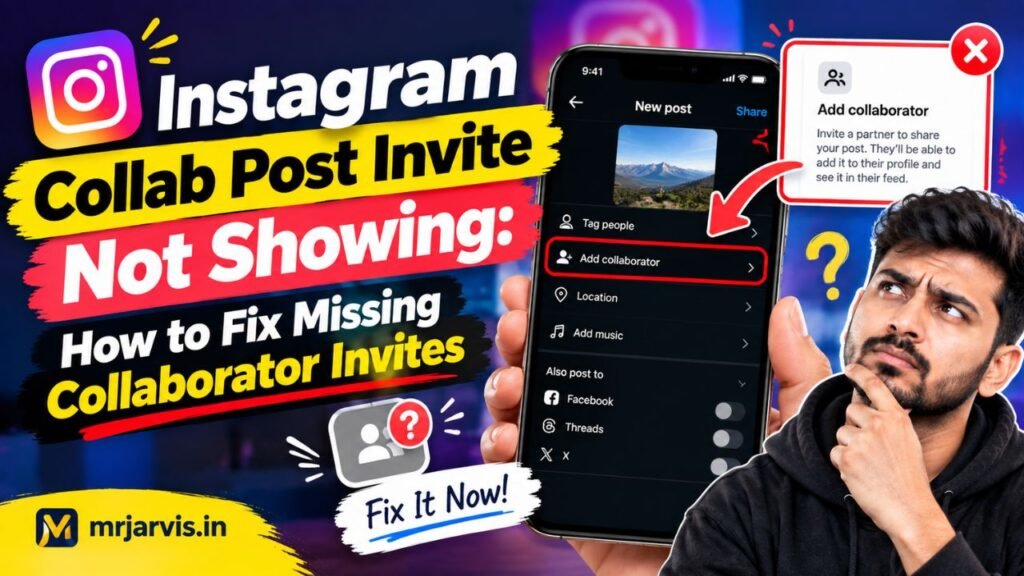
If you are dealing with the instagram collab post invite not showing bug, you are not dealing with an arbitrary penalty. The problem typically stems from account privacy conflicts, tagged-media permissions, professional tool switches, or corrupted in-app cache states. In this step-by-step troubleshooting guide, we walk through every configuration needed to restore the collaborator feature immediately.
Why Is the Instagram Collab Post Invite Not Showing?
When the invite collaborator field fails to appear—or fails to deliver the invitation banner to your co-author—it is generally caused by one of these technical bottlenecks:
- Private Account Constraints: Collab invitations cannot cross certain privacy boundaries. If the initiating account or the co-author has a private profile, the collaboration workflow behaves differently or is disabled entirely.
- Restricted Tagging Permissions: The receiving account may have set their privacy controls to disallow tags or mentions from people they do not follow.
- Regional Feature Rollout Glitches: Certain professional features experience intermittent outages during backend server updates.
- App Version and Cache Corruptions: Stale cached data inside your mobile app can hide updated UI elements, including the “Invite Collaborators” button in the tagging menu.
Understanding which of these hurdles applies to your scenario allows you to resolve the problem in minutes.
Step 1: Verify Account Privacy Alignment
The most common reason for a failed collaboration is an account privacy mismatch between the two profiles.
- Both Accounts Must Be Public (Recommended): For standard feed and Reel collaborations intended for public distribution, both the creator initiating the post and the collaborator must have public accounts.
- If an Account Is Private: A private account can invite a collaborator, but only if the invited account already follows them. Furthermore, if a public account invites a private account, the private account’s security parameters often prevent the media from appearing on their private feed, causing the invite to fail.
How to Make Your Account Public:
- Go to your Profile and tap the Menu (three lines) in the top-right corner.
- Select Settings and Privacy.
- Under Who can see your content, tap Account privacy.
- Toggle Private account to OFF.
Step 2: Adjust “Tags and Mentions” Permissions on the Collaborator’s Profile
Even if the primary creator successfully searches and taps the co-author’s handle, the invite often vanishes because the recipient’s privacy settings automatically block incoming tags.
The collaborator must check their incoming tag configuration:
- Open Instagram on the recipient’s device.
- Navigate to Settings and Privacy.
- Under How others can interact with you, tap Tags and mentions.
- Under Who can tag you, change the setting to Allow tags from everyone.
- Look at the option labeled Manually approve tags. If this is enabled, the invitation will not appear as a banner in their direct messages; it will sit quietly inside their Pending Tags review queue.
To ensure frictionless collaborations, set this to allow tags from everyone and temporarily disable manual tag review while publishing the post.
Step 3: Switch Both Profiles to Professional Accounts
While personal accounts theoretically support collaborations in many regions, business and creator profiles receive higher priority in Meta’s API synchronization for co-authored media.
If either profile is still configured as a personal account:
- Open Settings and Privacy.
- Scroll to For Professionals and select Account type and tools.
- Tap Switch to Professional Account.
- Select Creator (ideal for influencers, videographers, and bloggers) or Business.
- Complete the basic category selection.
Switching to a professional setup refreshes the account’s feature suite and updates access to collaborative posting tools.
Step 4: Follow Each Other Before Sending the Invite
Instagram’s anti-spam filters actively protect accounts with high engagement from unwanted collaboration spam. If an account with thousands of followers is invited to collaborate by a profile they do not follow, Meta’s automated spam filter often intercepts and hides the invite request.
The Workaround:
- Have both accounts follow each other prior to drafting the post.
- Send a direct message (DM) between the two accounts so that Meta’s communication gateway establishes an active conversational relationship.
- Once mutual following and messaging are established, initiate the collab invite again.
Step 5: How to Correctly Send a Collab Invite
Ensure you are following the correct workflow in the current Instagram interface:
- Tap the + (Create) button and select Post or Reel.
- Choose your media, apply your color grading, and proceed to the final details screen.
- Tap on Tag People.
- You will see two options: Add Tag and Invite Collaborator.
- Tap Invite Collaborator (do not simply tap on the video to add a standard tag).
- Search the collaborator’s exact handle.
- Select the profile and tap Done or the blue checkmark.
- Share the post.
The collaborator will receive a notification in their direct messages (DMs) containing an “Accept” button. Once they accept, their username will appear alongside yours in the post header.
Comparison: Regular Tag vs. Collab Post
| Feature | Regular Tag | Collab Post |
| Header Attribution | Primary creator only | Both usernames displayed side-by-side |
| Feed Placement | Appears in recipient’s “Tagged” tab | Appears directly on both primary Profile Grids |
| Combined Analytics | Views/Likes stay on author’s profile | Likes, comments, and views are combined |
| Audience Distribution | Only author’s followers receive feed push | Pushed to followers of both profiles |
Conclusion
Resolving the instagram collab post invite not showing issue comes down to auditing privacy settings, opening tag permissions, and ensuring proper account synchronization. When Meta’s privacy filters detect mismatched permissions or aggressive anti-spam rules, the collaboration workflow quietly breaks down without descriptive error messages.
By making both profiles public, setting tag permissions to “Allow from everyone,” mutually following each other, and using the dedicated “Invite Collaborator” tool within the tagging screen, you can reliably publish joint posts and tap into the full reach of combined audiences.