When an ad campaign breaks, a page is mistakenly restricted, or a billing payment loop stalls your marketing operations, automated help center articles are useless. In these high-stakes moments, you need to speak with an actual human support representative via Meta’s live chat tool.
However, when thousands of advertisers navigate to Meta Business Suite to start a chat session, they discover an infuriating problem: the “Chat with a representative” button has completely disappeared. Instead, they are trapped in an endless loop of unhelpful FAQ documents, broken automated troubleshooting forms, and generic community forum threads.
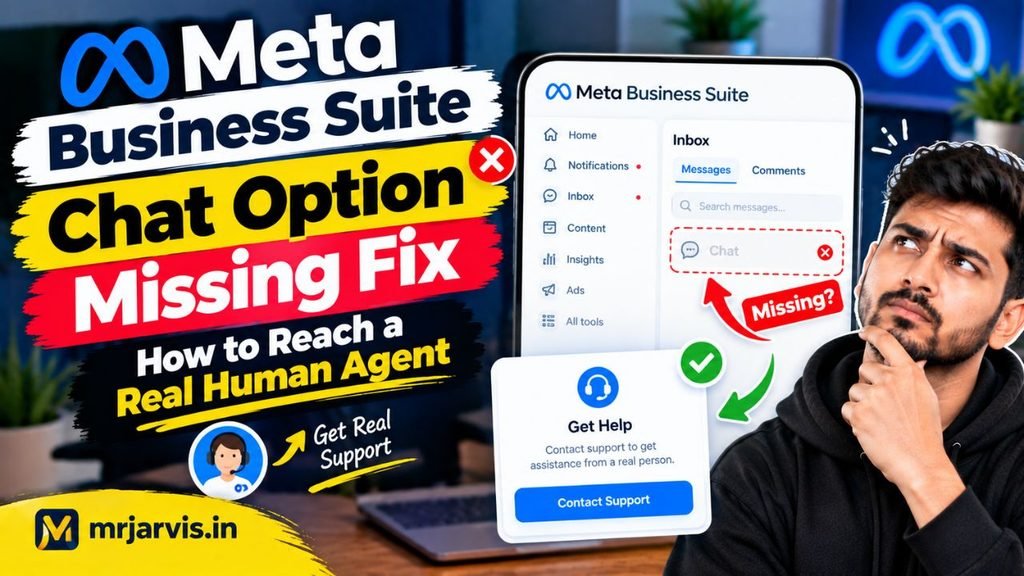
If you are looking for a reliable meta business suite chat option missing fix, you must understand how Meta gates access to its human support teams. In this comprehensive guide, we cover why the live chat button goes missing, how Meta’s internal support tiers work, and the backdoor methods to force the live chat option to reappear.
Why Is the Live Chat Option Missing in Meta Business Suite?
Meta does not maintain an open, universal live chat queue for every one of its three billion users. Access to live human chat is dynamically filtered by automated algorithms based on specific account parameters:
- Ad Spend Tiering: Meta prioritizes real-time human resources for accounts that maintain active, consistent advertising spend. Accounts with zero ad spend or inactive billing profiles are routinely routed to static documentation.
- Issue Categorization Gatekeeping: Certain support categories (such as “Page Name Change” or “General Feedback”) intentionally do not offer chat routing. Live agents are primarily allocated to billing issues, rejected advertisements, and disabled ad assets.
- Regional Operating Hours: While Meta advertises broad coverage, human chat teams operate on staggered regional schedules. Attempting to access support outside of standard regional business hours often results in the chat button being replaced by an email ticketing form or nothing at all.
- Browser Cache and Session Tokens: Stale cookies in your browser frequently fail to poll Meta’s real-time agent availability servers, falsely indicating that no agents are online.
Method 1: The Direct Commerce & Ads Support Backdoor
Instead of clicking through the surface-level help menus in the mobile app or main suite dashboard, navigate directly to Meta’s centralized, backend business support portal.
Direct Access Steps:
- Open an incognito/private browsing window on a desktop computer.
- Navigate directly to the dedicated business support link:
[business.facebook.com/business/help/support](https://business.facebook.com/business/help/support)(or[facebook.com/business/help/support/get-help](https://facebook.com/business/help/support/get-help)). - Log into your primary administrative profile.
- Scroll down past the suggested articles to the section titled “Still need help? Find answers or contact support.”
- Click on Contact Support.
- When prompted to select the asset experiencing issues, select an active Ad Account, even if your underlying problem is related to your Facebook Page or Instagram profile.
Insider Insight: Meta’s system prioritizes billing and advertising inquiries. Choosing an ad-related category unlocks the live chat option far more consistently than selecting a general page issue.
Method 2: Force Chat Activation via Active Ad Creation
If your Business Manager account has had zero active ad spend over the preceding 30 days, your access to live chat support is frequently throttled. You can reactivate your account’s “Active Advertiser” tier with a minimal budget test.
How to Re-Establish Active Advertiser Status:
- Open Meta Ads Manager.
- Create a basic post engagement campaign with a daily budget of $1.00 to $2.00 (or local currency equivalent).
- Target a broad audience and let the ad run for 24 to 48 hours to complete a successful billing charge.
- Once Meta’s billing engine logs a successful payment transaction on your account, return to the Business Help Center.
- The live chat button often reappears within 24 hours of successful billing verification, as your account is automatically reclassified into the active advertiser support tier.
Method 3: Access Chat via Meta Verified for Business
If your business relies heavily on Facebook and Instagram for lead generation or sales, waiting for algorithmic support availability poses a massive operational risk.
Meta now offers Meta Verified for Business (and Meta Verified for Creators):
- Subscribing provides an official blue verification badge alongside dedicated access to direct human customer support chat.
- If your chat button is perpetually missing due to low ad spend, subscribing to Meta Verified on your profile or business page provides a direct, priority lane to live chat agents without needing to trigger workarounds.
Method 4: Clear Session Cookies and Try Secondary Admin Profiles
Occasionally, the chat feature is hidden due to an account-specific routing bug affecting a particular user profile.
Steps to Test Alternate Access:
- Clear Browser Cache: Clear all browser cookies and cache for
facebook.comandmeta.comto force fresh server authentication. - Switch Browsers: Test accessing the portal using Google Chrome, Mozilla Firefox, or Microsoft Edge.
- Use a Co-Admin’s Account: If your Business Manager has multiple administrators, have another admin log into the Business Help Center from their machine. Meta frequently presents the chat option to one admin while temporarily hiding it from another based on individual profile trust metrics.
What to Prepare Before Connecting to Live Chat
Once the “Chat with a representative” button appears, speed and clarity are paramount. Meta support representatives handle several live tickets at once, and chat sessions will automatically time out if you take too long to respond.
Have these details copied to your clipboard before launching the session:
- Business Manager ID: Found in Business Settings > Business Info.
- Ad Account ID / Page ID: The exact numerical identifier for the affected asset.
- Exact Error Verbatim: The exact error text displayed on your dashboard.
- High-Resolution Screenshots: Clear images showing the entire browser screen, including the URL bar and timestamps.
Conclusion
Encountering the meta business suite chat option missing fix dilemma is an exercise in navigating Meta’s automated support hierarchy. The chat interface is not permanently gone; it is dynamically hidden based on account categorization, issue selection, and ad activity tiers.
By bypassing generic help menus in favor of direct support URLs, routing your ticket through an active advertising asset, ensuring your account maintains active advertiser standing, or verifying through an alternate business administrator, you can reliably bypass automated walls and connect directly with a real human agent to resolve your critical account issues.