Turning on Professional Mode transforms an ordinary Facebook profile into a monetization engine, allowing eligible creators to earn money directly from their audience through Facebook Stars, Reels bonuses, and Gifts. However, thousands of creators run into a brick wall when attempting to connect their financial details: the dreaded facebook professional mode stars setup bank account error.
Whether the setup form displays an ambiguous “An unexpected error occurred,” rejects your bank’s SWIFT/BIC code, or locks you in an infinite identity verification loop during tax form completion, an incomplete payout profile means your earned funds remain frozen on Meta’s servers.
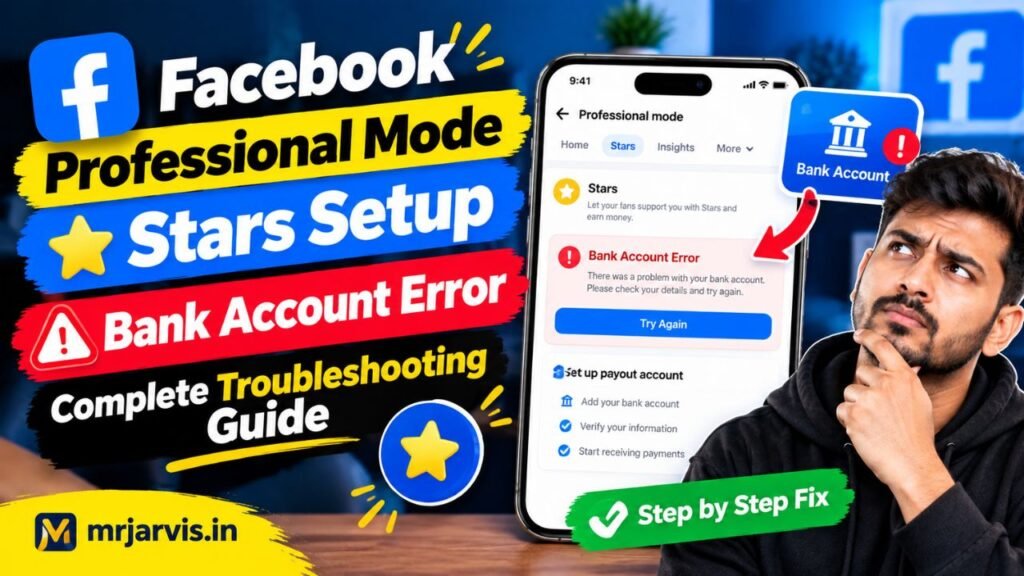
In this comprehensive guide, we troubleshoot the root technical causes of Facebook Stars payout failures and walk you through the precise steps to successfully connect your bank account and receive your payments.
Why Does Facebook Reject Your Bank Account During Stars Setup?
Meta’s financial disbursement infrastructure is governed by strict international anti-money laundering (AML) protocols and United States banking standards. Because payouts are processed through automated financial gateways, even the smallest discrepancy between your profile data and your bank account records will cause an automated system rejection.
The most common triggers for payout setup failures include:
- Legal Name vs. Profile Name Mismatch: If your Facebook profile uses a nickname or stage name, but your bank account is registered under your legal identity, automated verification fails instantly.
- Incorrect SWIFT / BIC Code Formats: Many creators confuse their domestic bank routing numbers, branch IFSC codes, or sorting codes with their bank’s international SWIFT-BIC code, which is required for cross-border transactions.
- Special Characters in Address Fields: Meta’s payout form often crashes if your street address includes punctuation such as commas, periods, slashes, or hyphens (e.g., writing “Apt #4-B, 2nd Floor” instead of “Apt 4B 2nd Floor”).
- Browser and Mobile App Script Blockers: Setting up payouts inside the mobile Facebook app frequently triggers JavaScript processing bugs, particularly when redirecting to external tax verification screens.
Step 1: Standardize Legal and Tax Information
The payout account setup process must match your government-issued identity documents exactly.
Before opening the payout setup tab, verify the following details:
- Legal Name: Must match the name on your national ID, passport, and bank account statement down to the letter.
- Tax Identification Number (TIN): Enter your official taxpayer identification number without spaces or dashes (in the US: SSN/EIN; in India: PAN; in the UK: National Insurance Number/UTR).
- Address Formatting: Enter your physical address using alphanumeric characters only. Completely eliminate commas, periods, apostrophes, and symbols.
Incorrect: Flat No. 12/B, Green Park, St. John's Road.
Correct: Flat No 12B Green Park St Johns Road
This simple formatting change resolves over 50% of the generic “Unexpected Error” notifications on the final submission page.
Step 2: Resolve the SWIFT Code and Bank Identifier Failure
The most widespread error during the “Link Bank Account” phase is entering an invalid bank identifier code.
Understanding SWIFT vs. Local Routing Numbers:
- For Creators in the United States: Use your standard 9-digit ACH Routing Number and your checking account number.
- For Creators Outside the United States: Meta requires an 8- or 11-character SWIFT / BIC code representing your bank’s head office.
How to Find Your Legitimate SWIFT Code:
- Do not use branch-specific IFSC or local sorting codes in the SWIFT box.
- Contact your bank’s customer support line or log into your online net banking portal to locate the international incoming wire SWIFT-BIC code.
- SWIFT codes follow an alphanumeric format: 4 letters (bank code), 2 letters (country code), 2 alphanumeric characters (location code), and an optional 3-character branch identifier (e.g.,
HDFCINBBXXXorBARCGB22). - Ensure all letters are entered in UPPERCASE.
Step 3: Complete Setup via Desktop Browser (Bypassing App Bugs)
Attempting to complete your Stars payout profile inside the mobile iOS or Android Facebook app is the leading cause of blank white screens and broken submit buttons. Mobile web-views often fail to render the embedded secure W-8BEN / W-9 electronic tax forms properly.
The Desktop Workaround:
- Open a desktop computer browser (Google Chrome or Mozilla Firefox).
- Go to facebook.com and log into your profile.
- Open a new tab and navigate directly to the Meta Business Suite or visit:
[facebook.com/payouts](https://facebook.com/payouts). - Click on Settings > Payout Accounts.
- Select the incomplete payout profile associated with your Professional Mode profile.
- Click on Update next to Payout Methods or Tax Information.
- Complete the step-by-step flow in the desktop environment. The secure tax form window will generate as a clean modal window, preventing mobile app crashes.
Step 4: What to Do If Your Tax Form Is Stuck in a Loop
If you submit your W-8BEN (non-US residents) or W-9 (US residents) form and the status continually reads “Action Required” or “Identity Verification Failed,” you are caught in a caching verification loop.
How to Break the Loop:
- Clear your desktop browser cookies and cache completely.
- Ensure you sign the digital tax certification box with your exact legal name as entered in Step 1.
- If prompted to upload an image of your identity document, ensure:
- The document is in high resolution with all four corners visible.
- There is no glare over your name or date of birth.
- The file format is a clean
.JPGor.PDFunder 5MB in size.
Once verified on desktop, the status will update from a yellow warning badge to an active green “Completed” tag within 24 to 48 hours.
Summary Troubleshooting Checklist
| Checkpoint | Target Configuration | Common Error to Avoid |
| Name Field | Exact legal name on bank records | Using your Facebook display nickname |
| Address Field | Plain text, numbers only | Using commas, slashes, or # symbols |
| Bank Identifier | Valid 8-11 character SWIFT/BIC code | Entering local branch codes or IFSC |
| Platform | Desktop Web Browser | Mobile app in-app browser view |
| Tax Document | High-res photo, all four corners visible | Cropped or blurry smartphone scans |
Conclusion
Resolving the facebook professional mode stars setup bank account error requires precision and strict adherence to banking and tax compliance standards. Meta’s automated payout engine has zero tolerance for mismatched names, incorrect international identifiers, or corrupted mobile app scripts.
By transitioning your setup process to a desktop browser, standardizing your street address without special characters, acquiring the correct uppercase SWIFT code directly from your bank’s head office, and ensuring your tax signature matches your legal profile, you can successfully bypass setup roadblocks. Once configured, your payout pipeline will activate, allowing your Facebook Stars earnings to deposit reliably into your bank account month after month.